
Connect an Official WhatsApp Business Account to urWhats
Manual linking gives you full control over the connection process. If you don’t have enough experience with Meta Business Manager settings, you can use direct linking instead.
Before starting you must have a business and a Facebook app that is officially verified.
If you don’t have enough experience to do this, you can request the service from urWhats to get a WhatsApp Business API number — contact us.
Useful links to get started:
- View the steps required to get started click here
- To verify your business on Facebook click here
- Add system users to Business Manager click here
The number you want to use must not be connected to WhatsApp. If the number has an existing WhatsApp account, you must delete it first in order to create a WhatsApp Business API number — how to delete the number click here.
After completing the steps outlined above, you can now set up the required phone numbers through the WhatsApp section inside your Facebook app.
If all steps are completed successfully, you will be able to obtain the Phone Number ID and WhatsApp Business Account ID, as shown in the screenshot below.
urWhats will request this data to complete creating the WhatsApp inbox and connecting it to the system.
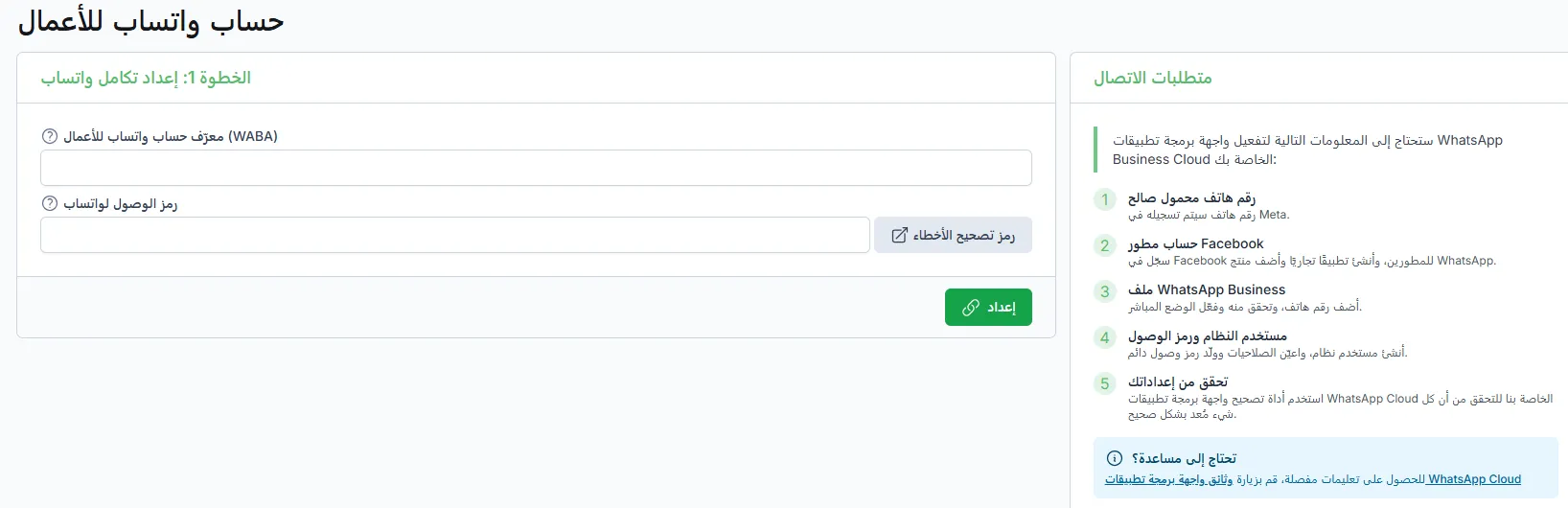
After setting up the app on Facebook, you must now extract the Access Token.
For more information about extracting the Token click here
Token Extraction Steps
Section titled “Token Extraction Steps”1. Go to Business Settings, then click on System Users from the side menu.
Section titled “1. Go to Business Settings, then click on System Users from the side menu.”2. Click the Add + button at the top right, then follow the steps to create a new system user.
Section titled “2. Click the Add + button at the top right, then follow the steps to create a new system user.”3. Select the system user you created, then click Assign Assets.
Section titled “3. Select the system user you created, then click Assign Assets.”- Choose your app, then enable Manage App under Full Control.
- Choose your WhatsApp account, then enable Manage WhatsApp Business Accounts under Full Control.
- Click the Assign Assets button to complete the operation.
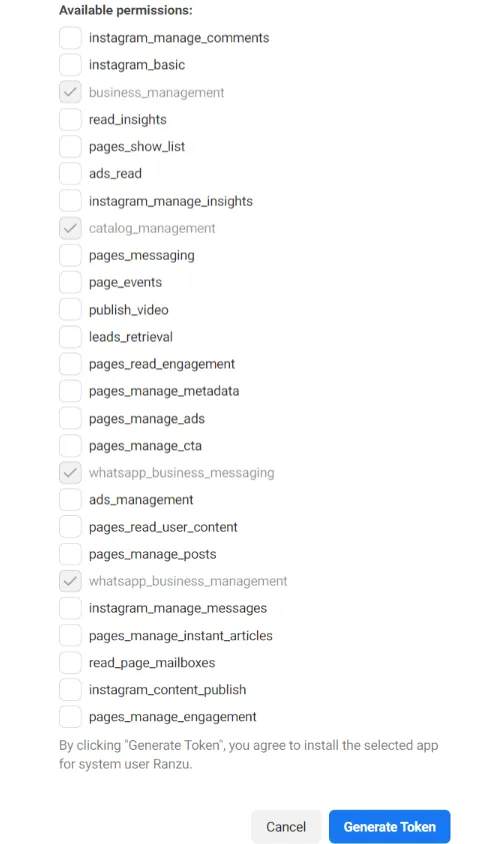
4. Click Create Token.
Section titled “4. Click Create Token.”- Follow the required steps to complete creating the Token.
- Add the following permissions to the Token: